 BeyondScan
 vs CamScanner
Which iPhone PDF scanner fits your workflow?
For personal scanning on iPhone or iPad, BeyondScan gives you on-device OCR, watermark-free PDFs and a scan flow without third-party ads or a separate account. CamScanner offers cross-platform teamwork, with an ad-supported experience and separate paid options for removing ads or watermarks.


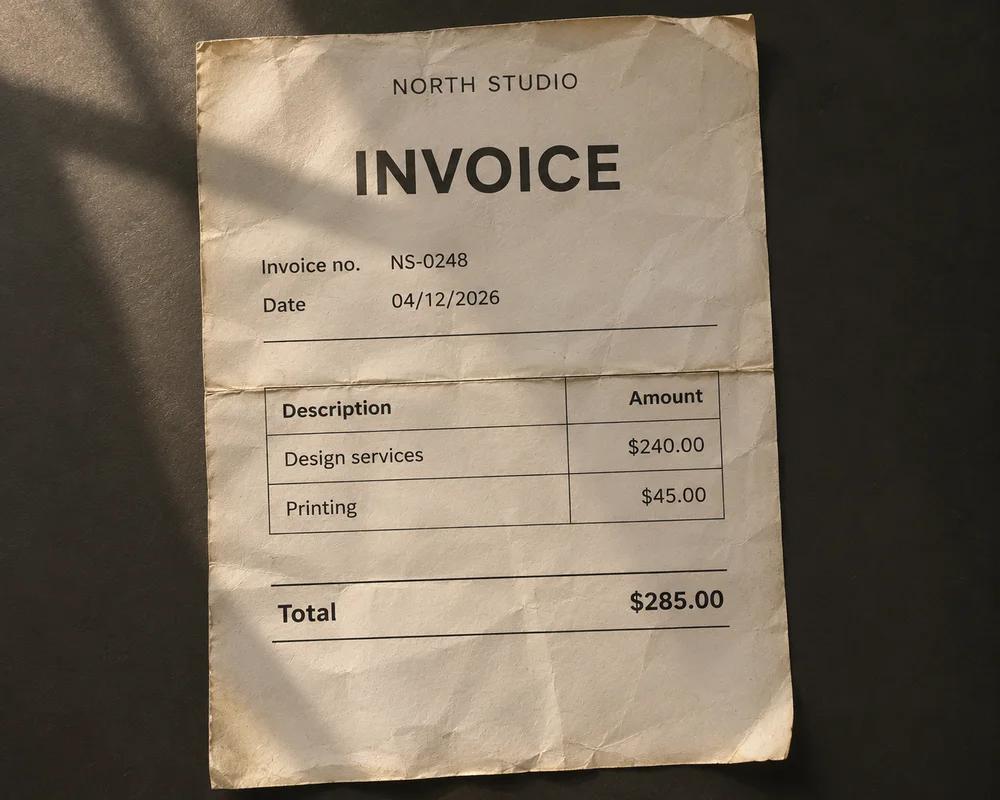
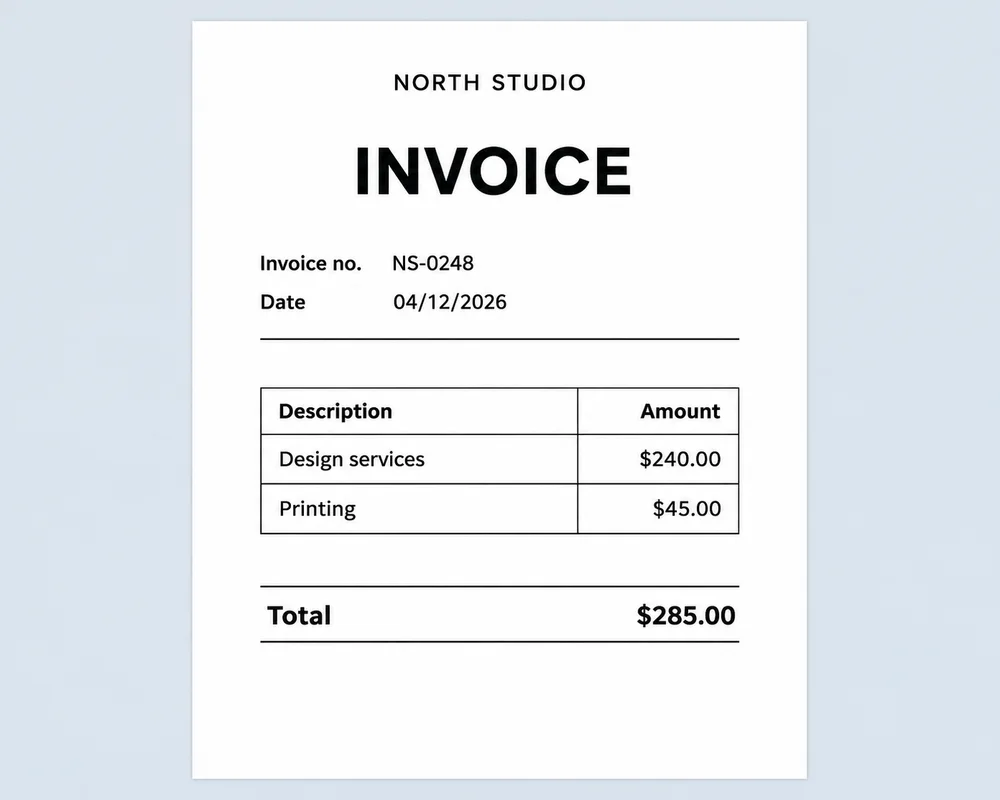
What matters in everyday use
- Focus and interface
- BeyondScanOpen the camera and scan. The iPhone and iPad workflow centers on capture, cleanup and export.
- CamScannerCombines scanning with conversion, editing and collaboration. This adds options and complexity for a quick scan.
- Privacy and file storage
- BeyondScanScans start on-device and Apple Vision OCR runs locally. Pro can sync to your private iCloud database.
- CamScannerLocal scanning is available. For CamScanner’s cross-device cloud sync, you use its own cloud service and account.
- Account requirements
- BeyondScanStart scanning without creating a BeyondScan account.
- CamScannerCloud sync and access from web or desktop require signing into a CamScanner account.
- Ads and paid removal
- BeyondScanThe scan flow has no third-party ad placements. Pro is optional for features such as iCloud sync and unlimited exports.
- CamScannerThe U.S. App Store lists advertising and a paid ad-removal purchase. Its privacy label also discloses third-party advertising data uses.
- PDF watermark
- BeyondScanPDF exports carry no BeyondScan watermark, including within the free export allowance.
- CamScannerCamScanner’s help center documents a branded watermark or QR code on exports and directs users to a paid option to remove it.
- Devices and sharing
- BeyondScanNative iOS sharing, Files integration and optional iCloud sync across Apple devices.
- CamScannerSupports more platforms and online collaboration. That matters most when a team actually needs those tools.
Source material · BeyondScan App Store · CamScanner App Store · CamScanner Help Center
Four ways BeyondScan fits an iPhone workflow
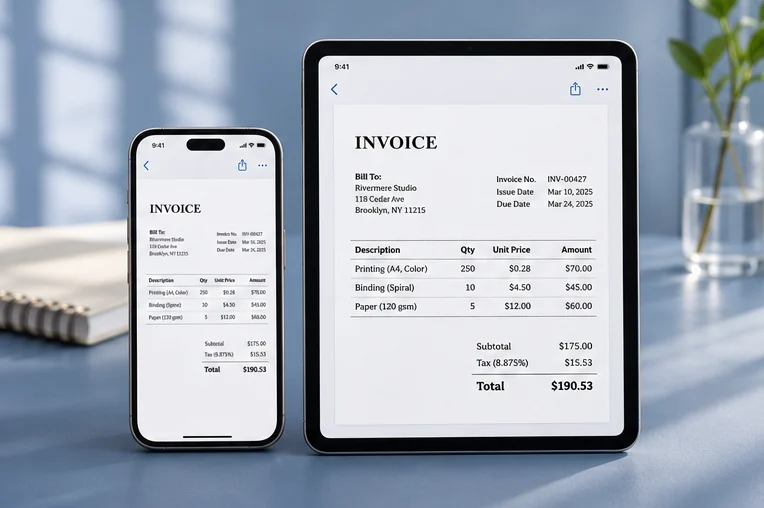
Keep sensitive scans under your control
For a signed contract, ID copy, or tax receipt, start with local storage and run OCR on the iPhone. If you want the same scans on your iPad, enable iCloud sync in BeyondScan Pro. It uses your personal Apple account and a private CloudKit database.
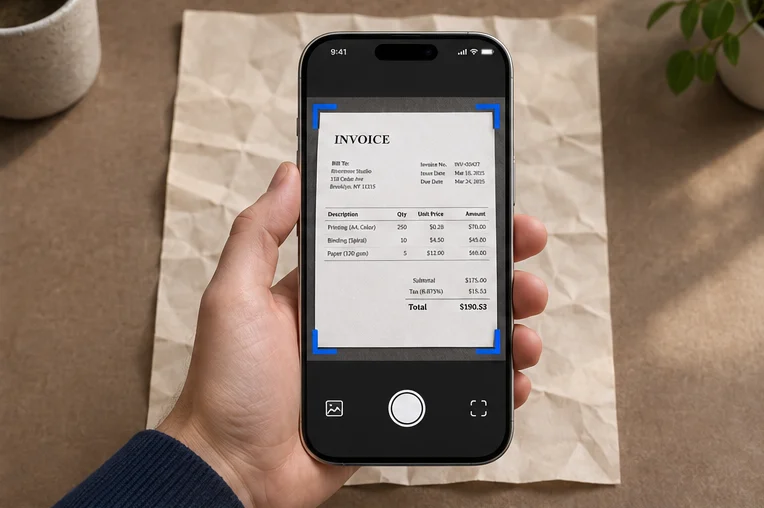
Go from camera to the first page
Open the camera, capture the page, then adjust corners or apply a filter from the preview. There is no BeyondScan account to create or third-party ad placement in that scan flow. For a single receipt, the capture-to-export steps stay the same as for a multi-page document.
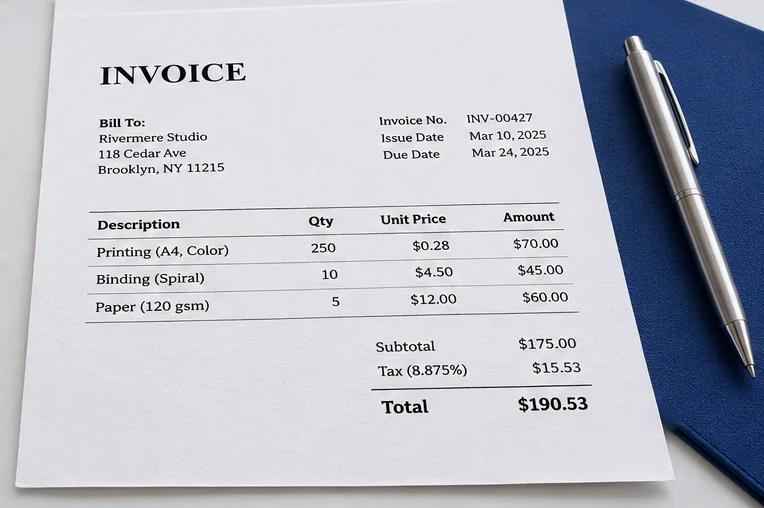
Send a PDF without a brand watermark
A clean export matters when a client or finance team needs to review the full page, including signatures and fine print. BeyondScan adds no brand watermark to PDF exports. Pro is available if you need unlimited exports.
Share with the iPhone tools you already use
Send the PDF from the iOS share sheet, save a copy in Files, or send it to another app. You can also start with an existing PDF from Files, then reorder pages before exporting.
When CamScanner makes sense
If you regularly switch between Apple devices, Android, and a browser or desktop client, CamScanner’s broader platform support may be more useful. Its online sharing and commenting also suit teams reviewing the same document. For a personal iPhone scan library, try a representative document in BeyondScan and check the workflow from capture to export.
Frequently asked questions
How does BeyondScan handle sensitive documents?
Apple Vision OCR runs on your device. Scans stay local unless you choose to share them, export them elsewhere, or enable optional iCloud sync. For a sensitive document, check the destination before sharing and follow any handling rules from your organization.
Can I scan a PDF on iPhone without a watermark?
Yes. BeyondScan adds no brand watermark to PDF exports. The free tier has export limits, and BeyondScan Pro includes unlimited exports.
Do I need a BeyondScan account?
No separate BeyondScan account is required to scan. Optional iCloud sync requires an Apple account signed into iCloud and BeyondScan Pro.
How do I move my PDFs from CamScanner?
Export the document as a PDF from CamScanner and save it in Files. Import that PDF into BeyondScan from Files, then check its page order and legibility. Keep the original until you have verified the imported copy.
CamScanner is a trademark of its respective owner. Comparison based on public information available in November 2026. Plans and availability can vary by version and region.